In This Article:
How to set up Microsoft Windows 10
Here's how to set up Windows 10 - Out-Of-Box-Experience (OOBE) on your new device:
- Turn on Your Device: Press the power button to start up your device.
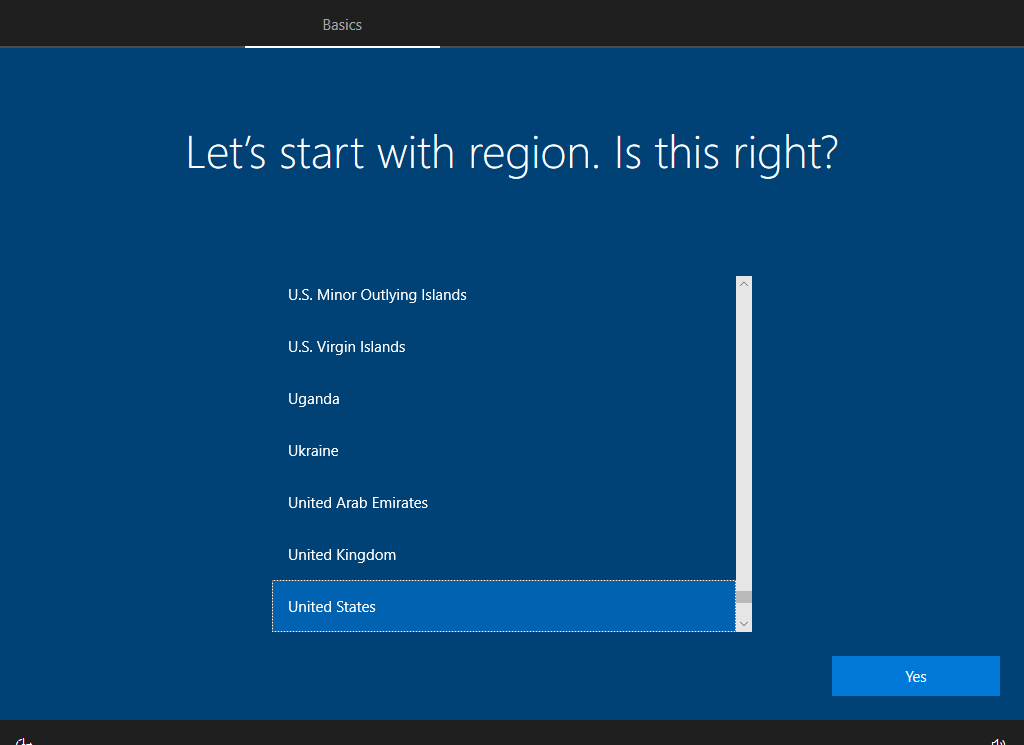
- Select Your Region: Select your region or country, then click Yes.
- Select the keyboard layout: Scroll down to find your preferred keyboard layout, then click Yes to continue.
Note: Users within Australia will likely want to select the US keyboard layout.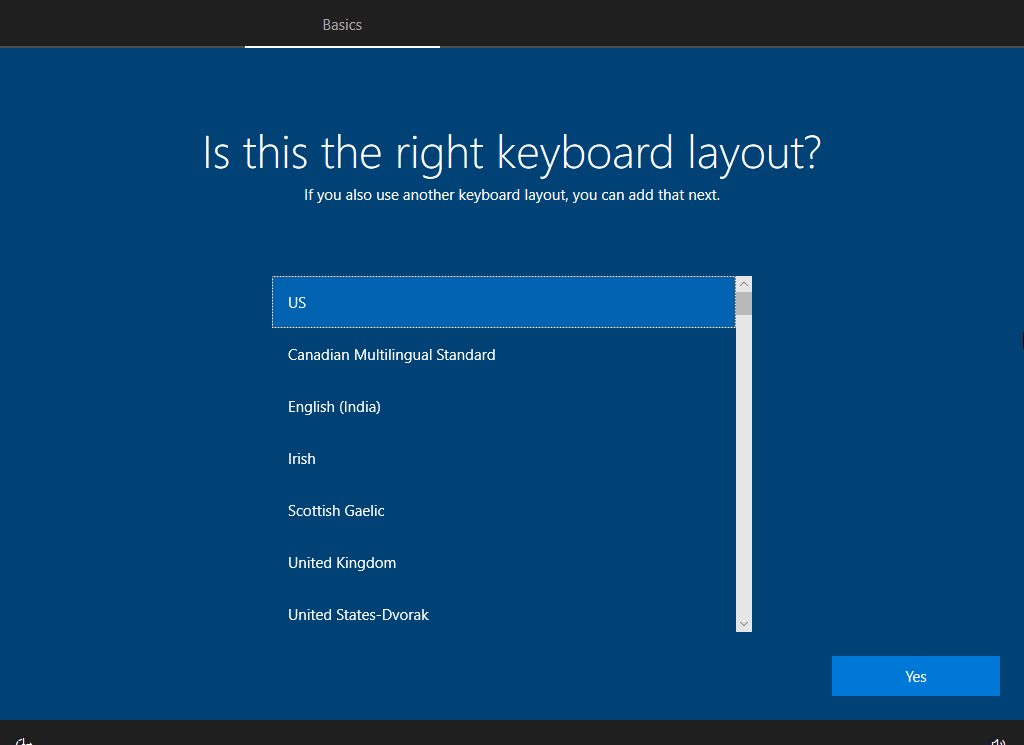
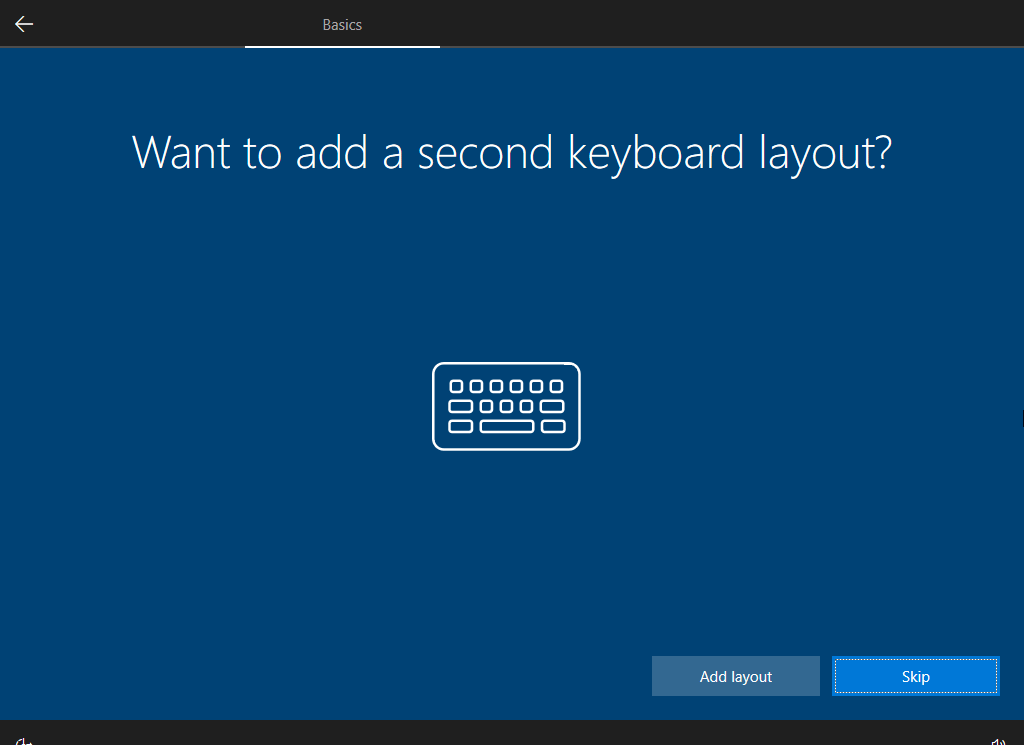
- If you would like to add a second keyboard layout, click Add layout. If you don't need to add a second keyboard layout, simply click Skip to continue with setup.
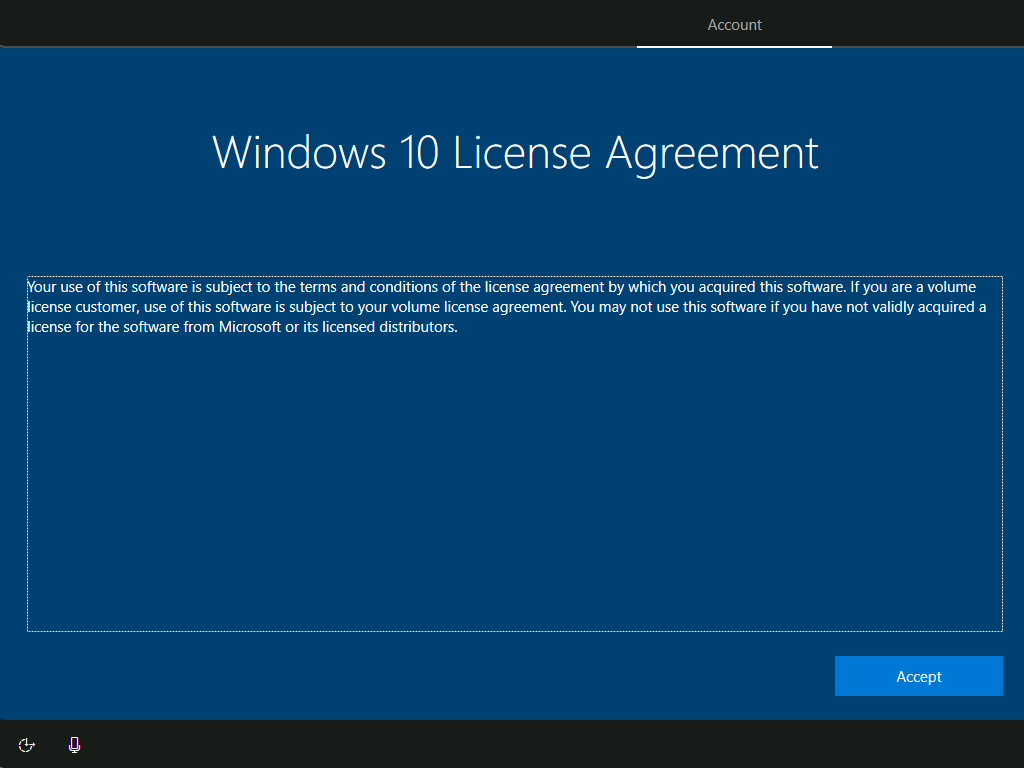
- Accept the Windows 10 License Agreement: Read through and click Accept to accept the license terms.
- Connect To A Network: You can connect your PC or laptop to a network, which will then allow you to add your Microsoft account. To do so, simply select your network, and enter the password. Then press Connect.
If you'd prefer, you can select I don't have internet to set up a local user account (see screenshot for reference).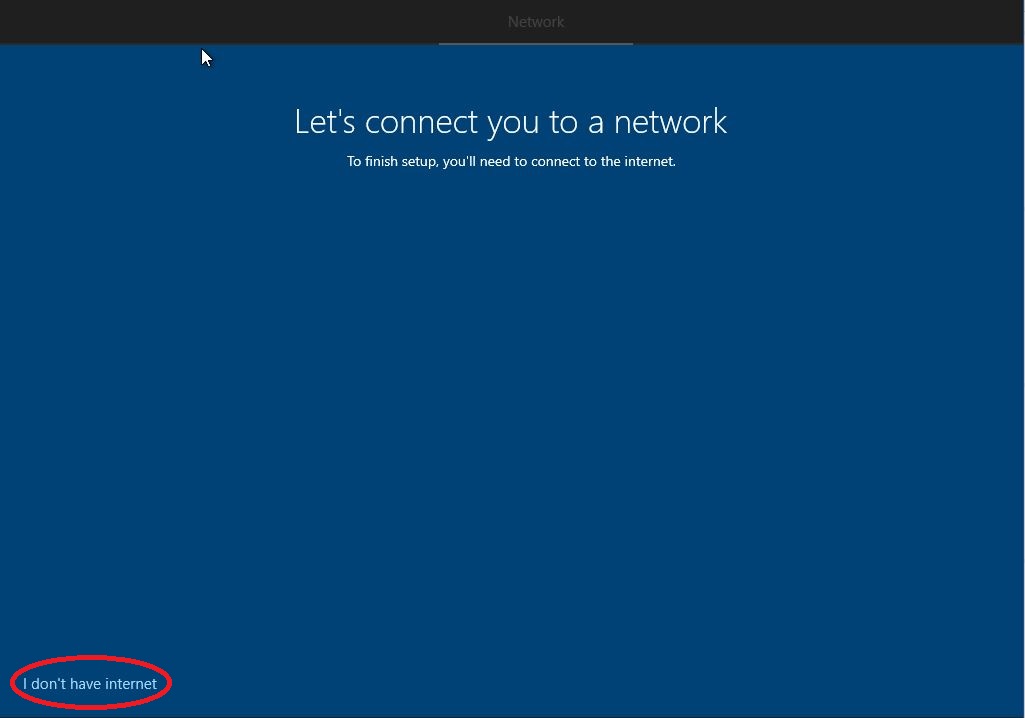
- Sign In With Your Microsoft Account: On the Let's Add your account screen, enter your Microsoft account or organisation email address and password, then click Next.
If you don't have an account, you can select Create account and follow the prompts to set up an account.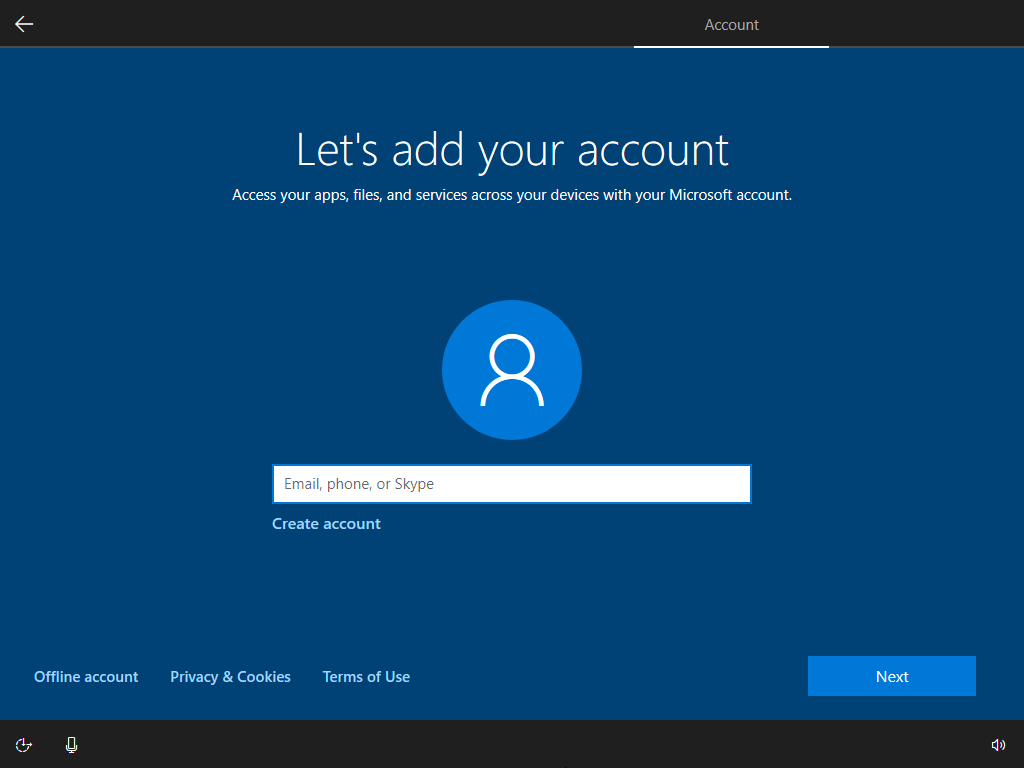
- Choose Privacy Settings: Finally, choose your privacy settings. You can customise these according to your preferences.
If you prefer, you can turn off all the presented options without effecting your Windows experience. Once done, click Accept to continue.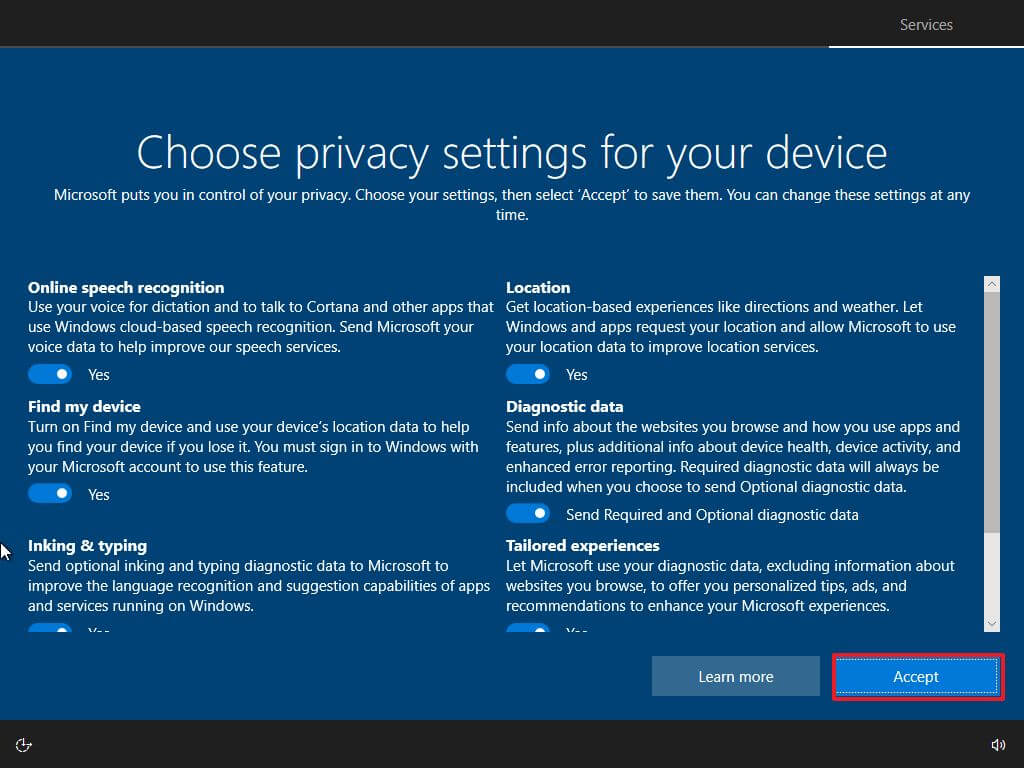
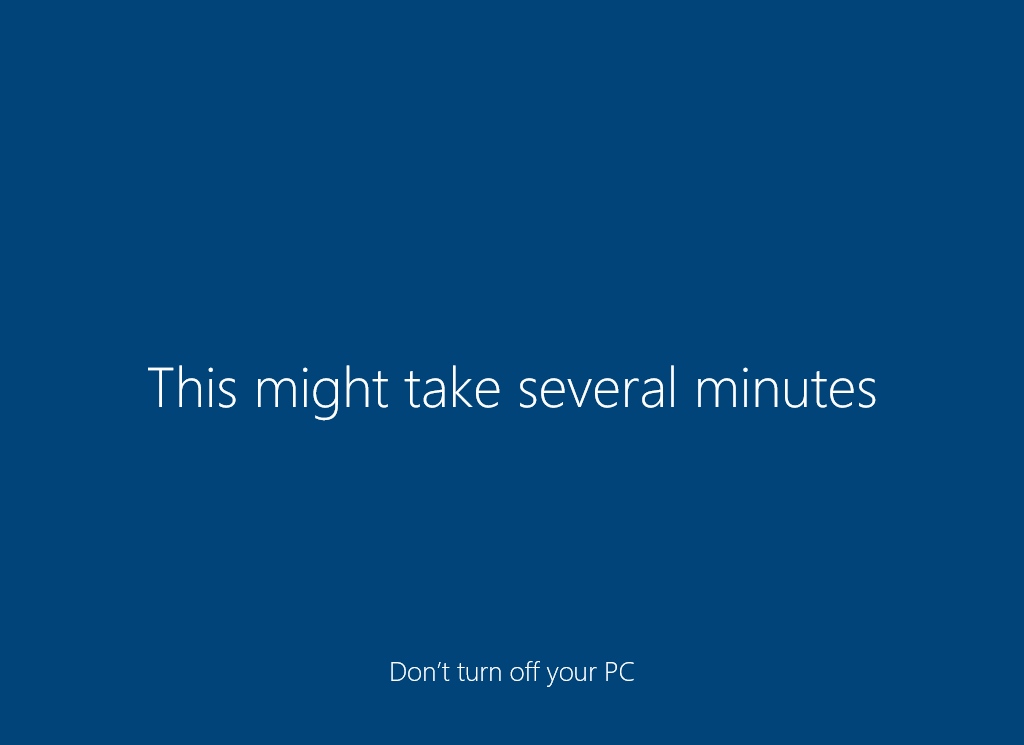
- Windows Setup: Windows will take a few minutes to set everything up. Once done, you'll be directed to the Windows desktop.
- Complete the Windows 10 Setup Process: Once Windows has been set up, we encourage you to run the Windows Update application to install the all the device's drivers. To access the Windows Update menu, simply press the Windows key + S key, type 'Windows Update', click Check For Updates.
- Install All Windows Updates: As long as you're connected to the internet, your computer should now automatically download and install all the required Windows updates.
These are important, as they include the latest driver and security updates for your system.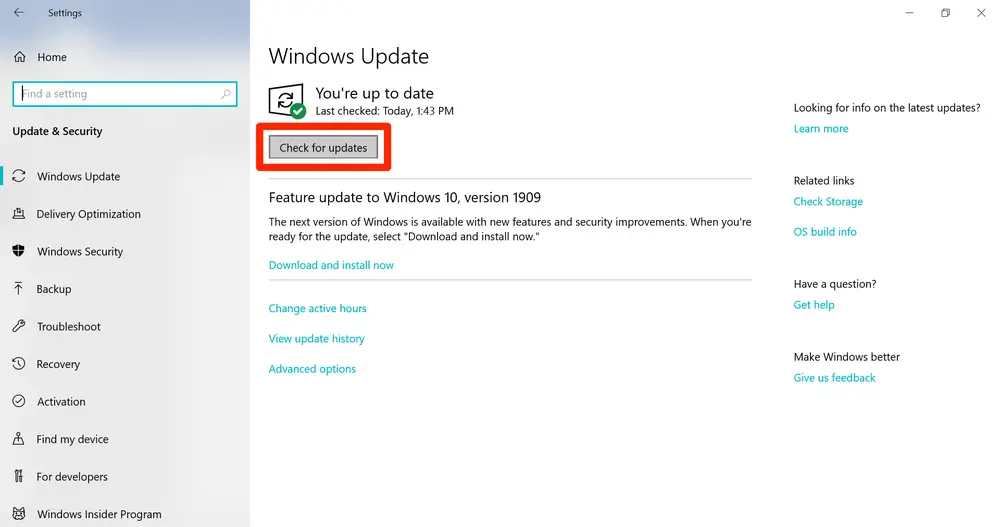
- Once the Windows updates have finished installing, you can now install your applications and begin using your computer.
How To Set Up Microsoft Windows 11
Here's how to set up Windows 11 - Out-Of-Box-Experience (OOBE) on your new device:
- Turn on Your Device: Press the power button to start up your device.
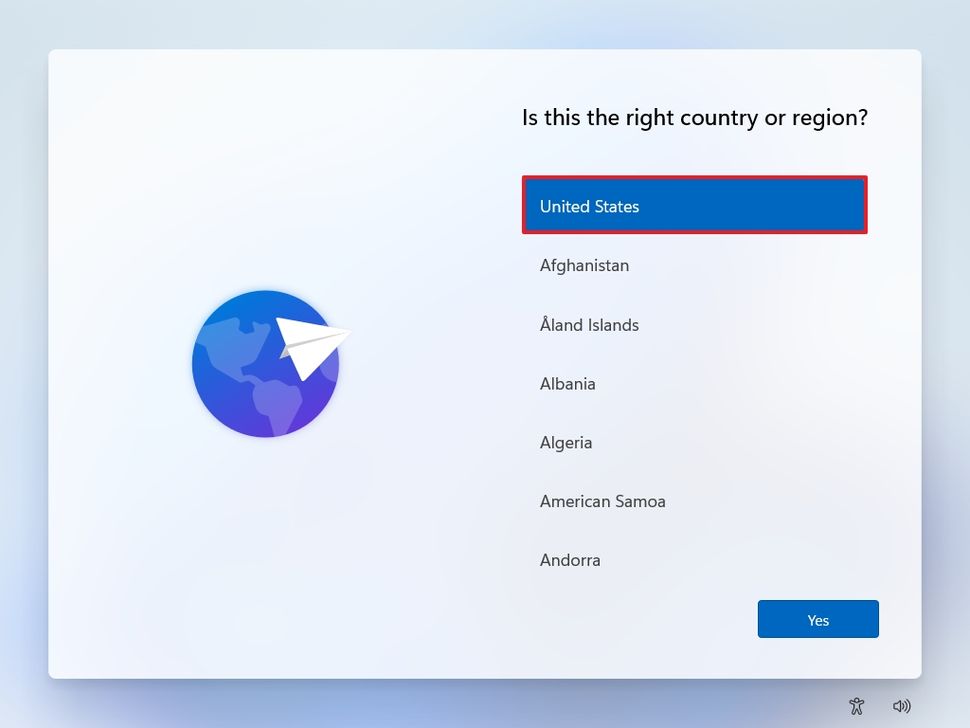
- Select Your Region: Select your region or country, then click Yes.
- Select the keyboard layout: Scroll down to find your preferred keyboard layout, then click Yes to continue.
Note: Users within Australia will likely want to select the US keyboard layout.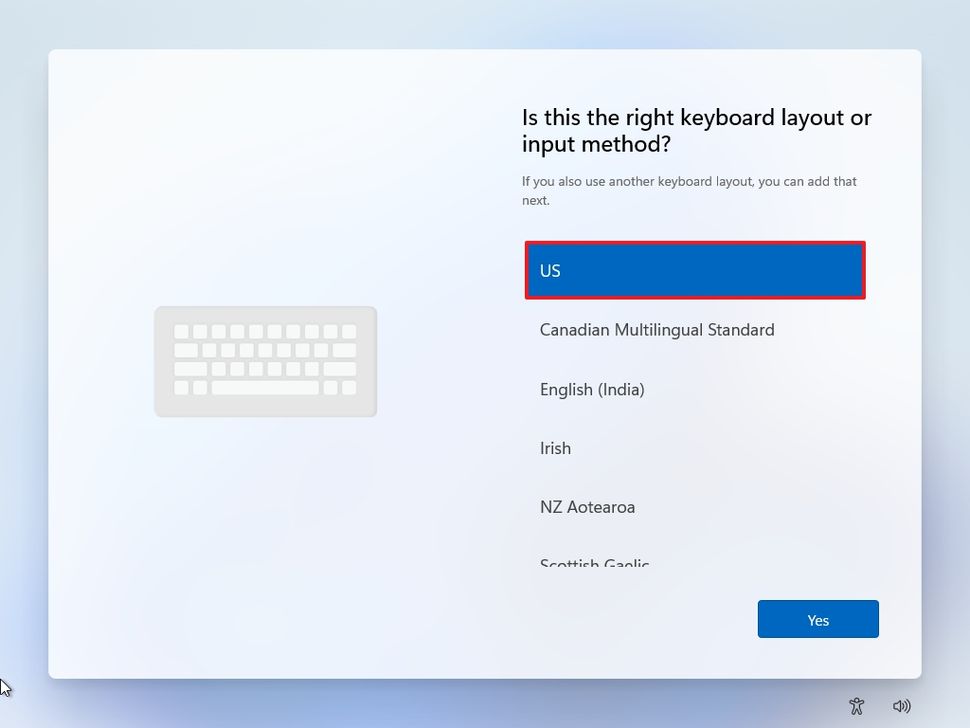
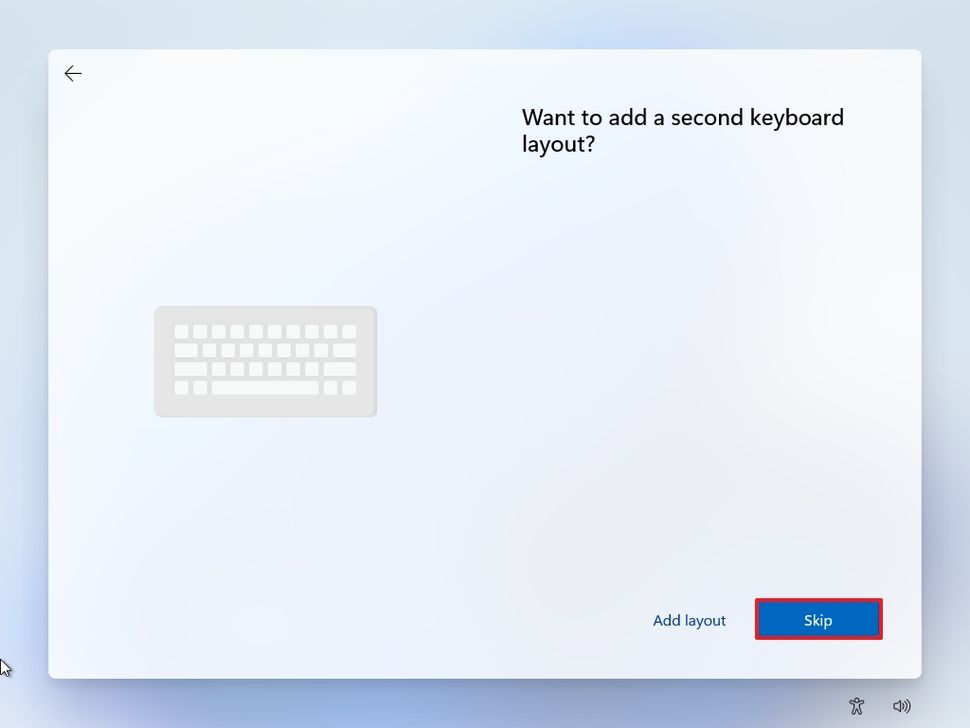
- If you would like to add a second keyboard layout, click Add layout. If you don't need to add a second keyboard layout, simply click Skip to continue with setup.
- Select & Connect To Your Network: You can choose a network to connect your computer to. If you don't have an internet connection, or would like to continue with limited setup options, you'll need to enter the following CMD prompt, once you've put this CMD prompt in, your computer will restart. Complete the above options again, then you'll have the option to select 'I don't have internet' to continue with the setup.
CMD Prompt to Skip Network Connection:
Press Shift + F10 > CMD Prompt Opens. Type 'OOBE\BYPASSNRO' and press Enter..png)
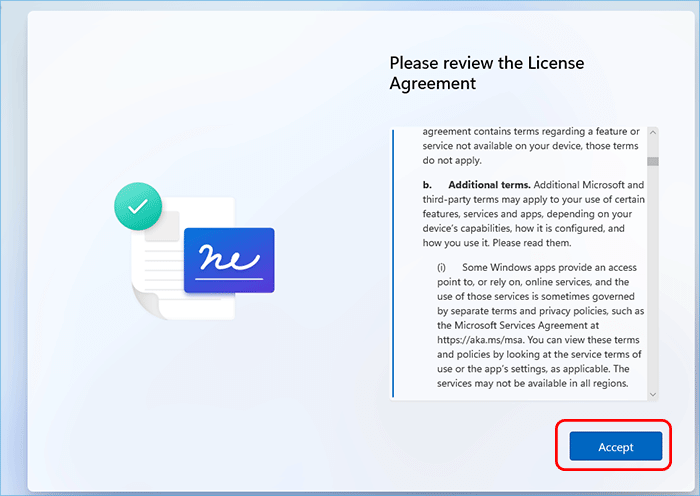
- Accept the Windows 11 License Agreement: Read through and click Accept to accept the license terms.
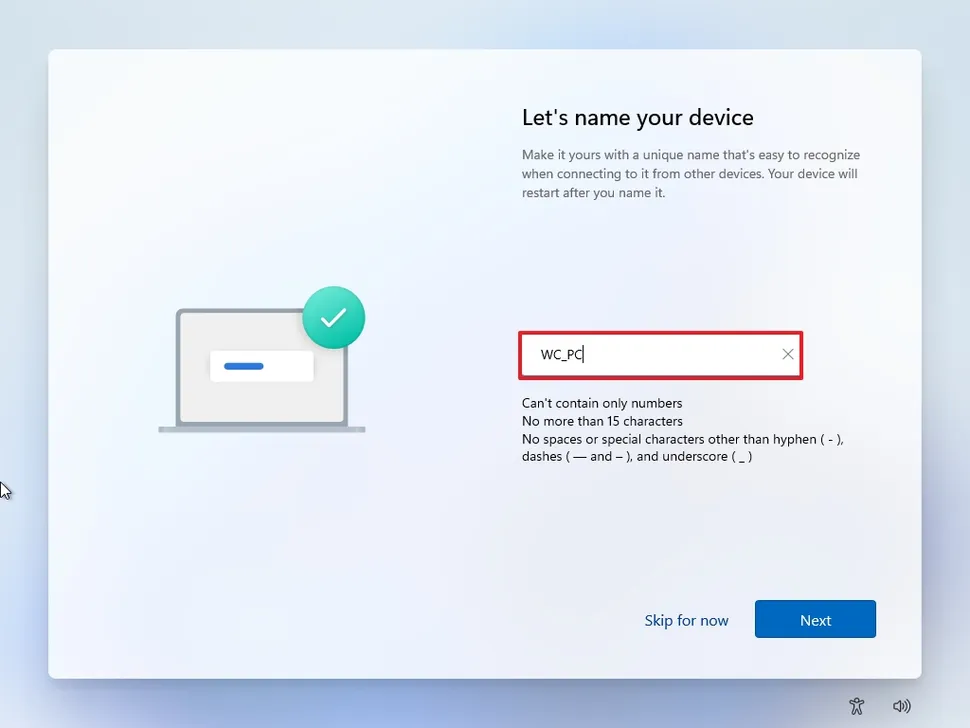
- Give Your Computer a Name: If you like, you can name your device (optional).
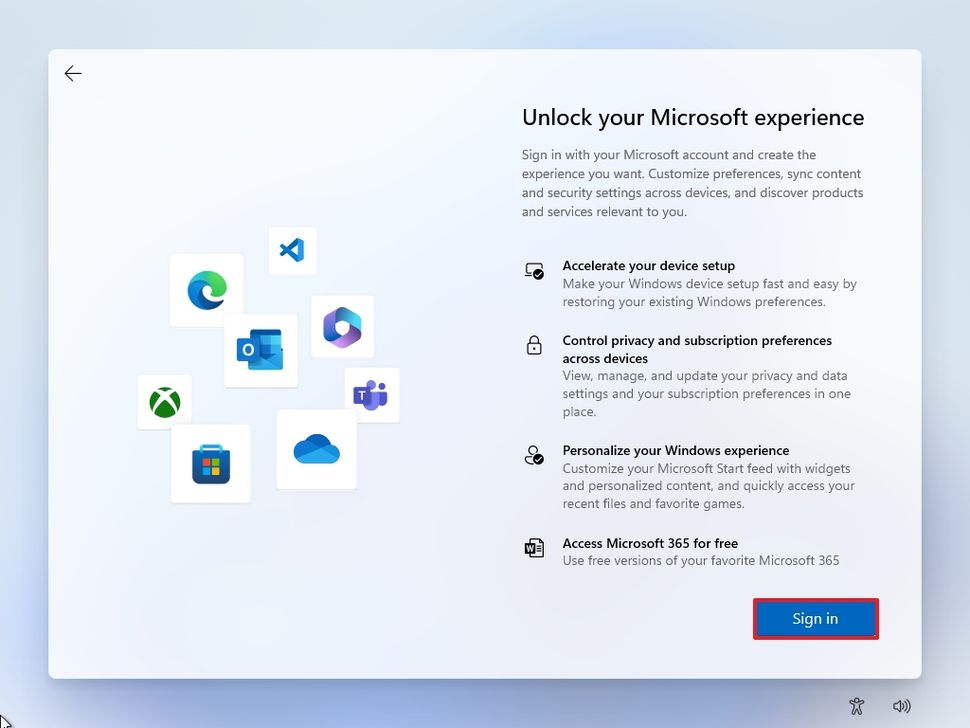
- Sign In With Your Microsoft Account: Click Sign In.
- On the Let's Add your account screen, enter your Microsoft account or organisation email address and password, then click Next.
If you don't have an account, you can select Create account and follow the prompts to set up an account.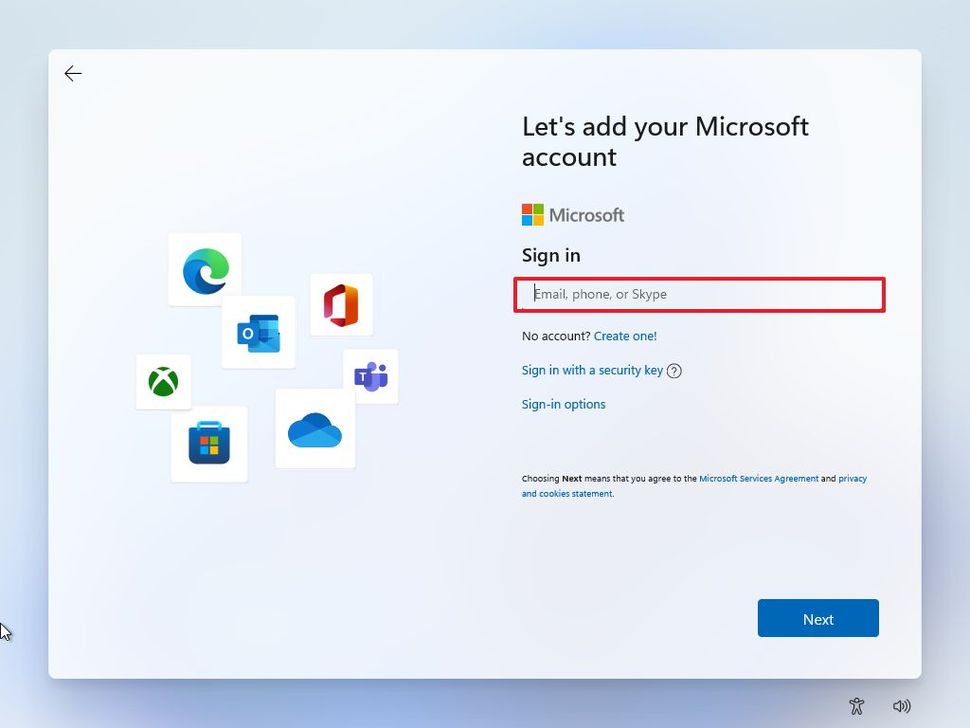
- Choose Your Privacy Settings: You can choose to toggle the options on or off, depending on your preferences. Once done, click Next.
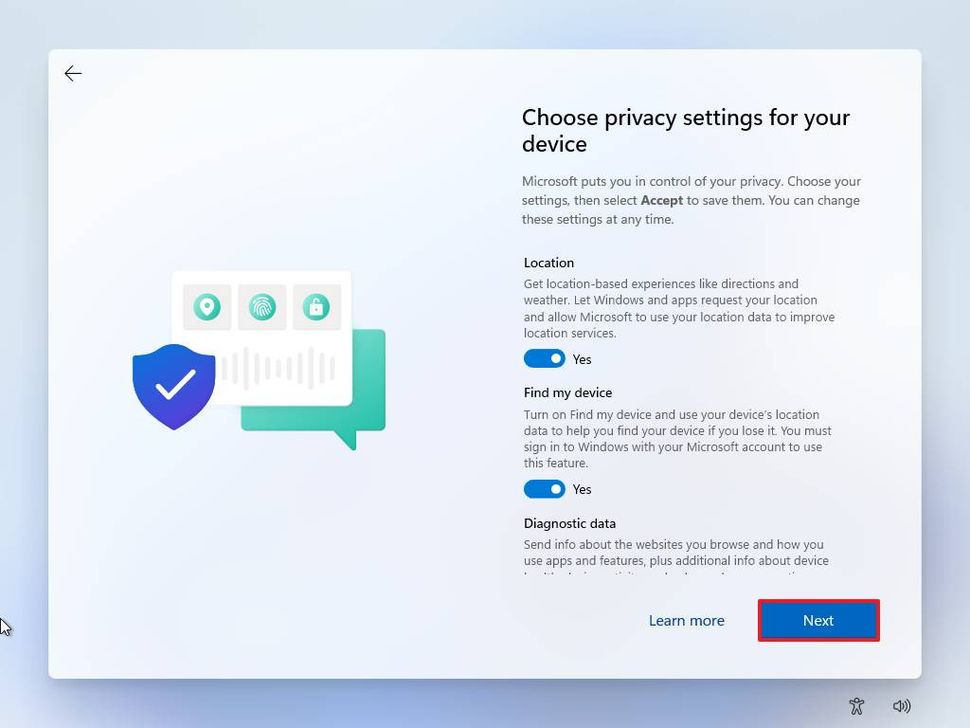
- After completing the Windows 11 setup, Windows will save your changes and complete the installation.

- Complete the Windows 11 Setup Process: Once Windows has been set up, we encourage you to run the Windows Update application to install the all the device's drivers. To access the Windows Update menu, simply press the Windows key + S key, type 'Windows Update', click Check For Updates.
- Install All Windows Updates: As long as you're connected to the internet, your computer should now automatically download and install all the required Windows updates.
These are important, as they include the latest driver and security updates for your system.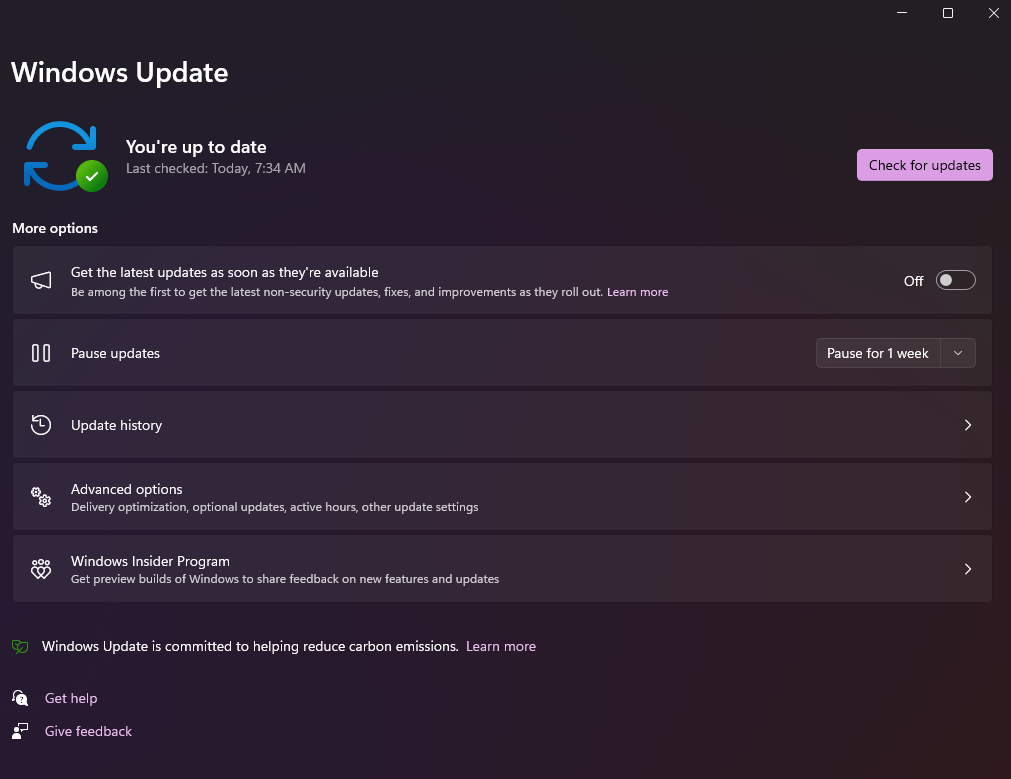
- Once the Windows updates have finished installing, you can now install your applications and begin using your computer.
Congratulations! You've completed setting up your Windows computer.
Windows Initial Setup Guide FAQ's
Can I Set Up My Windows Computer Without An Internet Connection?
Yes, you can complete the set-up process by skipping past any of the prompts that ask you to sign in to an account, or connect to the internet.
- Windows 10: Select 'I Don't Have Internet' when asked to connect to a network.
- Windows 11: Press Shift + F10 > CMD Prompt Opens. Type 'OOBE\BYPASSNRO' and press Enter. This command allows you to skip past the network setup.
By skipping past the network connection, you can create a local account on the device. Once the set-up process is complete, you can then connect to a network, and log in to your Microsoft, if you like.
Comments
0 comments
Please sign in to leave a comment.